
This quick guide walks you through saving and loading configuration files on your Vista Touch device using a USB drive, so you can easily back up, restore, or duplicate settings in just a few steps.
Changing Settings on the Vista Touch
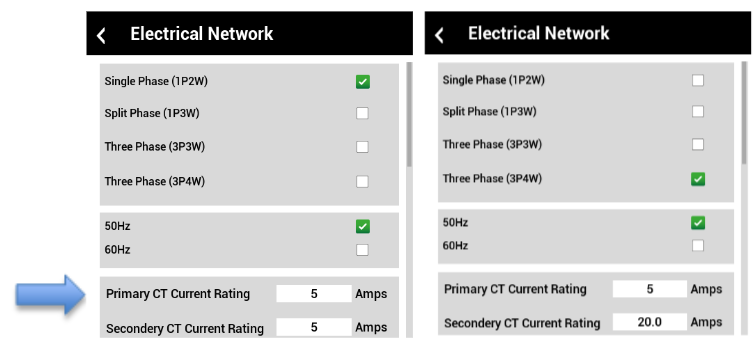
Before saving, make sure you've set up your Vista-Touch device with the desired settings. Apply any changes directly on the device screen.
How to Save a Configuration File
Saving your configuration lets you preserve your current setup or share it across other devices.
| Step 1: Insert a USB thumb drive into the device. | |
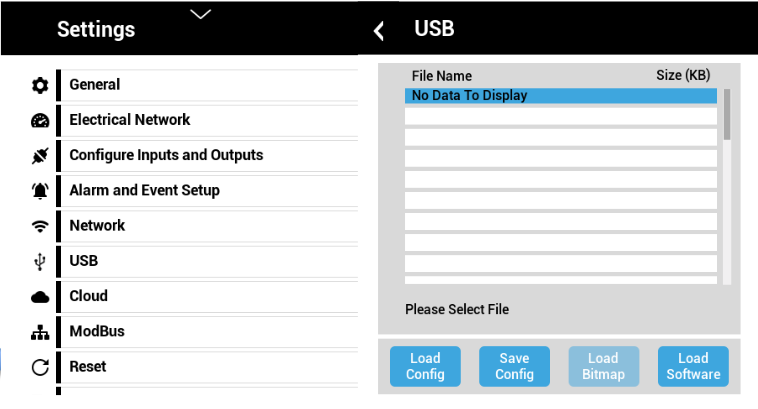
| Step 2: Navigate to the USB screen on your Vista Touch. |
|
| Step 3: Press the Save Config button. | |
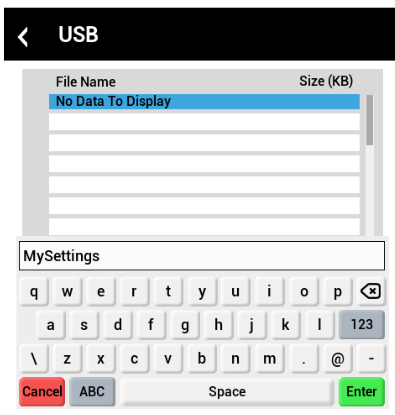
| Step 4: Enter a file name using letters and numbers only (maximum 17 characters). Press “Enter” to save the configuration file. |
|
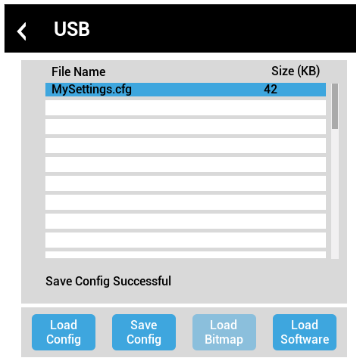
| Step 5: Once saved, the file appears in the selection menu, and you’ll see: “Save Config Successful”. All user-changed settings will be saved to this file. |
|
How to Load a Configuration File
Loading a saved file allows you to quickly apply a pre-set configuration.
| Step 1: Insert the USB thumb drive containing your configuration file. | |
| Step 2: Navigate to the USB settings page. | |
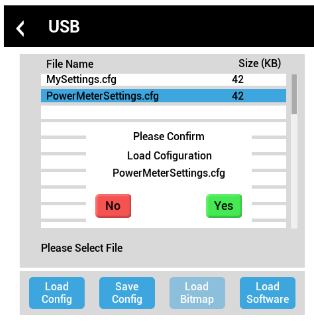
| Step 3: Select the desired file from the list. | |
| Step 4: Press Load Config. | |
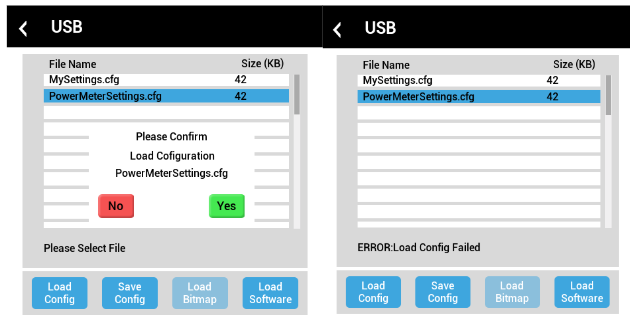
| Step 5: Confirm your choice in the popup. |
|
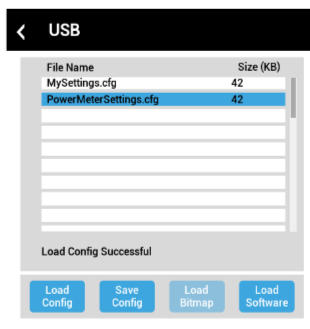
| Step 6: If successful, the screen will display: “Load Config Successful”. The device will apply all settings from the selected file. |
|
What to Do If You Encounter Errors
If the configuration doesn’t load properly, you may see “Error: Load Config Failed.”
Possible causes:
- Wrong file type or Vista-Touch model selected.
- File format is incorrect.
- The file was altered on a PC or corrupted.
Solution:
Make sure you're using a compatible file saved directly from the Vista-Touch. Try re-saving and loading again.
Tips & Best Practices
- Label configuration files clearly for easy identification.
- Avoid editing config files on a computer.
- Keep a backup of important configurations on a separate USB drive.