
This document describes how to update the APM Gateway firmware using a USB. To learn how to update the firmware via the cloud, click here.
Prerequisites
- Download the latest firmware for your APM Gateway: APM Gateway Firmware - Version 7.3.1
- Unzip the file and copy files to a freshly formatted USB drive (FAT32 format).
- The files must reside in the root folder.
| Software Update Process | |
|---|---|
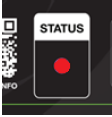
| Gateway powered, with NO APMs attached, the Status LED will be RED if not connected to the Internet/Trumeter Cloud or GREEN if connected. |
|
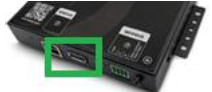
| Insert the USB drive into the Gateway’s USB-A port. |
|
| The Gateway Status LED will change to BLUE |
|
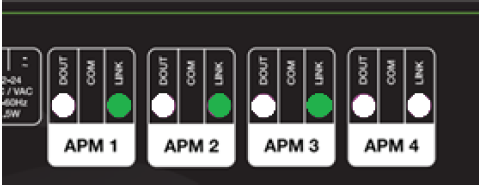
The update will take few minutes:
|
|


| Update Complete | |
|---|---|
| Remove the USB drive | |
| Ensure the Ethernet cable is inserted into the Gateway and connected to the internet. | |
| The Gateway Status LED will turn GREEN when a connection with the Trumeter Cloud has been established. |
|